How Android Handles App Storage
Demystifying Android App Storage: What's Eating Your Phone's Space?
Ever found yourself staring at that dreaded "Storage Full" notification on your Android device? It's a common modern-day dilemma. Understanding how Android handles app storage is key to keeping your phone running smoothly and preventing those frustrating slowdowns. It's not just about the apps themselves, but all the data, caches, and media they accumulate over time.
Managing your phone's memory can feel like a complex puzzle, but once you grasp the basics, it becomes much easier. This article will break down the different types of storage, what apps typically store, and practical ways to keep your device clutter-free.
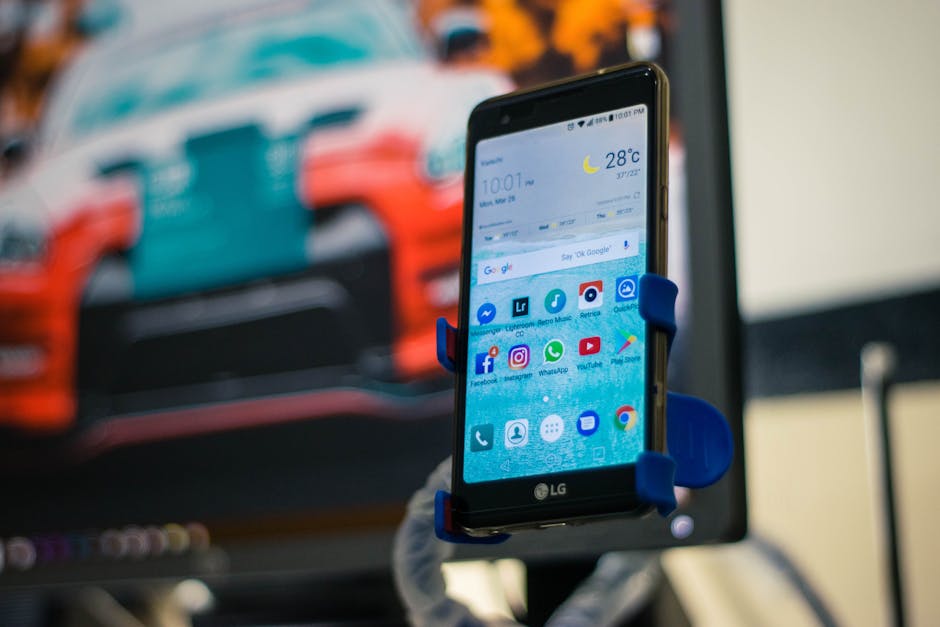
The Android App Storage Landscape: Internal vs. External
At its core, your Android phone uses two primary types of storage: internal and external. Internal storage is built right into your device, acting as the primary home for your operating system, all your installed apps, and their private data.
External storage usually refers to an SD card you can insert into your phone. While some devices no longer support them, SD cards offer a way to expand your storage, typically for photos, videos, and sometimes parts of larger apps.
The crucial difference lies in speed and accessibility. Internal storage is generally much faster and more secure, as it's directly managed by the system. External storage, while offering flexibility, can be slower and is often treated differently by Android for security reasons.
Dissecting App Data: What Fills Up Your Phone?
When we talk about app storage, we're actually referring to several components. First, there's the app itself – the core program files that make the app run. Then there's the app's data, which includes your settings, login information, saved game progress, and databases unique to that app.
Beyond the core app and its personal data, many applications download additional large files, known as OBB (Opaque Binary Blob) files, especially for games with extensive graphics or media. These files are often placed in specific directories and can take up significant space.
Finally, apps also generate temporary files, often called cache, which we'll dive into next. They might also download user-generated content, like offline maps or podcasts, directly into their own managed storage areas.
Understanding and Managing Your App Cache
The app cache is a vital component of smooth Android performance, but it can also be a significant storage hog. Essentially, cache stores temporary data that apps might need again quickly, such as images, web pages, or parts of a video you've already viewed.
This temporary data allows apps to load faster and operate more efficiently, as they don't have to re-download or re-process information every time. For example, a web browser might cache images from frequently visited websites.
While clearing an app's cache is generally safe and often recommended for troubleshooting, it's important to remember that the app will then need to rebuild that cache, which might cause it to run slightly slower initially. However, it's an excellent way to reclaim space without losing important app data.
Scoped Storage: A Modern Approach to Privacy
With Android 10 and subsequent versions, Google introduced a significant change called Scoped Storage. This enhancement dramatically altered how applications can access your device's storage, prioritizing user privacy and security.
Under Scoped Storage, each app is given its own isolated storage "sandbox." This means an app can only freely access files it created itself within its private directory. Access to other parts of the device's shared storage, like your Photos or Downloads folder, requires explicit user permission.
This change prevents rogue applications from indiscriminately scanning your device for personal files or accidentally deleting data belonging to other apps. While it was a big shift for developers, for users, it means a more secure and predictable environment for their precious data.
Tips for Freeing Up Android App Storage Space
Running low on space? Here are some actionable tips to get your phone breathing easily again:
- Clear App Cache Regularly: Go to Settings > Apps & notifications > See all apps, select an app, then Storage & cache, and tap "Clear cache." Do this for frequently used apps like social media, browsers, and streaming services.
- Uninstall Unused Apps: It sounds obvious, but many of us have apps we downloaded once and never opened again. These take up precious space and might even run in the background.
- Move Large Media Files: Photos and videos are often the biggest culprits. Consider backing them up to cloud services like Google Photos or transferring them to an SD card (if your phone supports it) or your computer.
- Utilize "Files by Google" or Similar Apps: These apps can help identify large files, duplicate photos, and unused apps, making cleanup much easier. They often have a "Clean" tab specifically for this purpose.
- Check App Downloads: Many apps download files directly into their own folders. Look for "Download" folders within app settings or using a file manager, and delete anything you no longer need.
These simple steps can make a big difference in how your phone performs. Don't forget that some apps also allow you to offload certain data, such as offline maps, directly from their own settings.
Looking Ahead: The Evolution of Android Storage Management
Android's approach to storage isn't static; it's constantly evolving to meet the demands of new technologies, larger files, and user privacy expectations. Google continues to refine its storage APIs, aiming for a balance between application functionality and user control.
We're likely to see further improvements in how apps manage their data responsibly, with continued emphasis on security and clear permissions. These ongoing developments aim to make the user experience even smoother, requiring less manual intervention to keep devices optimized.
By staying informed about how Android manages your data, you're better equipped to maintain your device's health and ensure a frustration-free mobile experience. A little attention to your phone's storage goes a long way in ensuring its longevity and performance.