Android System Navigation Explained
The Core of Your Android Experience: Understanding Navigation
Ever wondered how you effortlessly jump between apps, return to your home screen, or go back to a previous page on your Android device? It's all thanks to the sophisticated system that governs your interaction: Android system navigation explained in simple terms, it's the invisible framework that dictates how you move around your phone's interface.
This fundamental aspect of your smartphone experience is often taken for granted, but it profoundly impacts how efficiently and pleasantly you use your device. Understanding the different navigation methods can unlock a smoother, more personalized interaction with your Android phone.
A Look Back: The Classic Three-Button Navigation
For many years, the standard way to navigate an Android phone was through a familiar set of three virtual buttons. This tried-and-true method offered a clear, consistent, and easily understandable way to interact with your device, making it intuitive for new and experienced users alike.
These on-screen buttons, usually positioned at the bottom of the display, each had a distinct and universal function across almost all applications. They became the bedrock of how users interacted with the operating system.
- Back: This arrow icon takes you to the previous screen, step, or menu within any application or the Android system itself.
- Home: Represented by a circle or house icon, this button instantly brings you back to your primary home screen, regardless of which app you're in.
- Recents/Overview: Often a square or three lines, this button displays all your recently used applications, allowing you to quickly switch between them or close them down.
While incredibly reliable and straightforward, this three-button system does take up a small but permanent strip of your screen. As phones grew larger and displays became more immersive, many users started looking for ways to reclaim that valuable screen real estate.
Embracing Modernity: Android's Gesture Navigation System
To deliver a more expansive and immersive viewing experience, Android introduced a modern alternative: gesture navigation. This system replaces the traditional buttons with intuitive swipes and flicks, allowing your apps to truly fill the entire display.
This gesture-based approach to Android system navigation feels much more fluid and natural once you've learned the motions. It's designed to mimic how we naturally interact with touch surfaces, making the phone feel like an extension of your hand.
The core gestures are generally consistent: a swipe up from the bottom takes you to the home screen, a swipe up and hold reveals your recent apps, and a swipe from either the left or right edge of the screen acts as the back command. These actions prioritize screen space and a modern aesthetic.
Customizing Your Android Navigation Experience
One of Android's most compelling features is its unparalleled flexibility, and your navigation style is no exception. Most contemporary Android smartphones offer the freedom to switch between the classic three-button bar and the sleeker gesture navigation system, letting you choose what best suits your personal workflow.
To adjust your preferred navigation method, simply dive into your phone's settings menu. You'll typically find the options under categories such as "System," "Gestures," "Display," or specifically labeled as "System navigation" or "Navigation bar." Here, you can select your preferred style and sometimes even fine-tune gesture sensitivity or reorder button layouts.
Don't be afraid to experiment with both options for a few days or even a week. What might initially feel unfamiliar or awkward with a new Android system navigation style could quickly become your preferred, more efficient way to interact with your device.
Mastering Your Android Navigation: Tips and Tricks
No matter if you're a loyal fan of buttons or a devotee of gestures, there are always ways to refine your interaction with your Android device. Understanding a few subtle tips can significantly enhance your daily navigation efficiency and make your phone feel even more responsive.
For those who stick with the three-button layout, remember that a quick double-tap on the "Recents" button can swiftly switch you between your two most recently used applications. This is a powerful time-saver for multitasking.
Gesture users should practice their swipes until they become second nature. If you find the "back" gesture interfering with an app's own swipe features, try performing the system gesture slightly higher on the screen or with a more deliberate, slower motion to differentiate it.
Troubleshooting Common Navigation Glitches
Even the most advanced Android system navigation can occasionally hit a snag. If your buttons aren't responding, or your gestures seem inconsistent, don't panic – these issues are often minor and have straightforward solutions that you can try yourself.
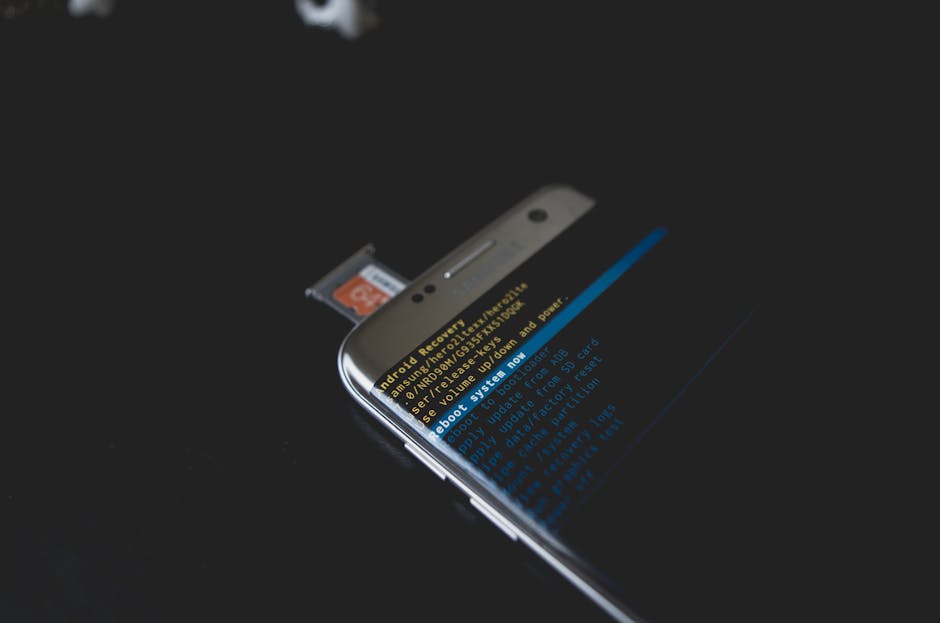
A quick restart of your smartphone is frequently the magic bullet for many temporary software quirks, including navigation hiccups. If the problem persists, revisit your navigation settings to ensure no accidental changes have occurred or that a newly installed app isn't interfering.
In rare cases, clearing the cache for your device's launcher app (the program that manages your home screen) can help. As a last resort, if navigation issues are severe and persistent, a factory reset might be considered, but always remember to back up all your data first.
Why Your Android Navigation Choice Matters for UX
The way you choose to navigate your smartphone is far more than a minor preference; it fundamentally shapes your entire user experience. Selecting the right Android system navigation method impacts everything from speed and efficiency to available screen space and overall comfort.
Gesture navigation shines when you prioritize maximum screen real estate and an immersive content viewing experience, perfect for watching videos, reading, or browsing. However, it may require a bit of a learning curve to master the precise swipes.
Conversely, button navigation offers predictable reliability and ease of use, which can be particularly reassuring for new smartphone users or those who value precision above all else. Ultimately, the best navigation is the one that makes your Android device feel most natural and productive in your hands.