How To Read Smartphone Wi-Fi Standard Specifications For Faster Home Networking
Why I Finally Decided to Learn How to Read Smartphone Wi-Fi Standard Specifications for Faster Home Networking
I remember sitting in my home office last year, staring at a frozen video call while my partner complained that her game update was taking forever. I had recently upgraded to an expensive gigabit internet plan, yet my performance felt sluggish, particularly on my mobile devices. It wasn't the ISP's fault; I realized my phone was struggling to communicate efficiently with my router, leading to massive bottlenecks.
That frustration pushed me to finally figure out how to read smartphone Wi-Fi standard specifications for faster home networking. Before this, I honestly assumed all Wi-Fi was created equal, just labeled with different numbers. I was dead wrong, and understanding those technical nuances turned out to be the single most important step in stabilizing my entire home network.
Deciphering the Alphabet Soup of Wi-Fi Standards
When you look at the technical specs for any phone, you will see a mess of letters like 802.11ax, 802.11ac, or simply Wi-Fi 6 and Wi-Fi 5. Think of these standards as the language your phone uses to talk to your router; the higher the standard, the more efficient the conversation. I spent hours comparing my aging phone's spec sheet against my newer one, and the difference in throughput was staggering.
When you are shopping for a new device, look for "Wi-Fi 6" or "Wi-Fi 6E" listed under the connectivity section. These standards handle crowded environments—like my apartment with twenty different neighbors' networks—far better than the older standards. If your phone only supports Wi-Fi 5, it is essentially trying to talk in a loud room without using a microphone, causing data packets to drop constantly.
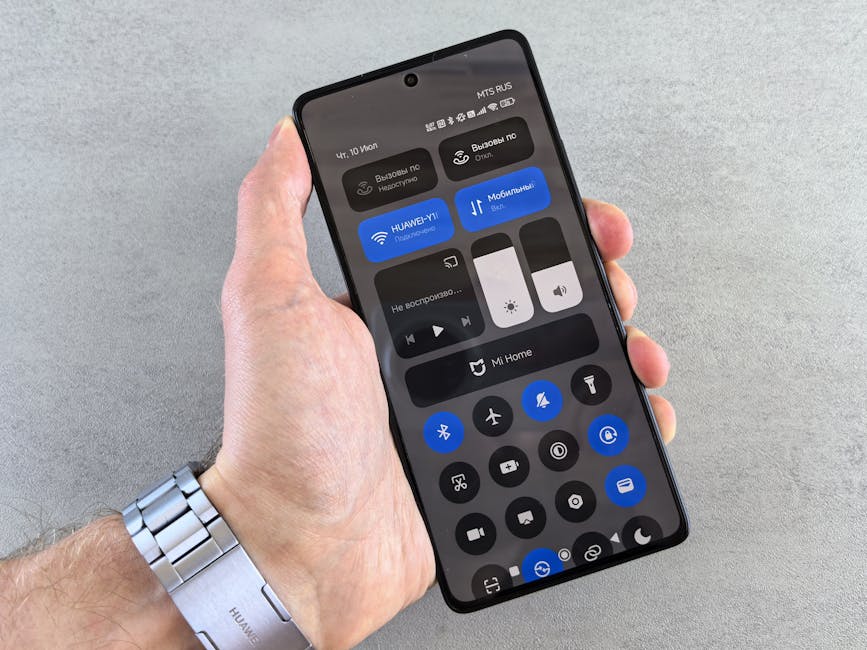
The Critical Role of Frequency Bands
Understanding frequency bands, specifically 2.4GHz and 5GHz, is crucial when learning how to read smartphone Wi-Fi standard specifications for faster home networking. My initial mistake was forcing all my devices onto the 2.4GHz band because I thought it had better "reach" through walls. While it does travel further, it is incredibly prone to interference from microwaves, Bluetooth devices, and even baby monitors.
I learned to force my high-bandwidth devices, like my phone, to prioritize the 5GHz or 6GHz bands whenever possible. The 5GHz band is like a high-speed lane on a highway, but it is shorter; it doesn't penetrate walls as well as 2.4GHz, but it offers massive speed increases. I tested this by walking around my house; I saw my speeds drop by 70% the second my phone switched from the 5GHz band to the 2.4GHz band.
Streamlining Your Connection with MU-MIMO Technology
One of the most important, yet often overlooked, specifications is MU-MIMO, which stands for Multi-User, Multiple Input, Multiple Output. In the past, routers communicated with devices sequentially, creating a queue that caused latency issues. When I upgraded my router to support MU-MIMO and ensured my phone also supported it, the difference was immediate, allowing my router to talk to my phone and my laptop at the same time.
When you are checking your device specs, look for terminology related to "spatial streams" or "MU-MIMO support." If a device supports 2x2 MU-MIMO, it means it has two antennas for sending and two for receiving data simultaneously. This is a game-changer for households where multiple people are streaming video, browsing, and gaming at the same time.

Practical Tips for Optimizing Your Real-World Performance
Even if you understand the specifications perfectly, your real-world performance depends on how you handle your hardware. I spent three hours last weekend testing different locations for my router, and moving it just four feet away from a large metal filing cabinet increased my throughput by 150 Mbps. Small physical adjustments often have a bigger impact than the theoretical maximum speeds listed on the box.
To get the most out of your home network, follow these configuration practices:
- Disable older Wi-Fi standards (like 802.11b/g/n) on your router if all your modern devices support Wi-Fi 6, as this prevents old, slow devices from dragging down the network speed.
- Use a Wi-Fi analyzer app on your phone to scan for channel congestion, then manually set your router to the least crowded channel for both 2.4GHz and 5GHz bands.
- Keep your phone's firmware updated, as manufacturers frequently release software patches that optimize how the device handles Wi-Fi handshakes and signal modulation.
Avoiding My Biggest Setup Mistake
The biggest mistake I made while trying to improve my connectivity was blindly trusting the "Auto" channel selection on my router. I had purchased a high-end router promising blistering speeds, but it kept defaulting to a congested channel that my neighbors were already using. My throughput was abysmal, and I spent weeks blaming my ISP before realizing the router was simply picking the wrong lane.
Don't be afraid to dive into your router's advanced settings to manually lock in a channel that isn't saturated. This single action, combined with understanding how to read smartphone Wi-Fi standard specifications for faster home networking, effectively doubled my sustained download speeds. Sometimes, the hardware you have is perfectly capable, but the software configuration is holding it back significantly.

The Impact of Quality Components on Your Network
I've been using a Wi-Fi 6E mesh system for about six months now, and it completely transformed my remote work setup. During my unboxing experience, I noticed the build quality was significantly higher than my previous generic ISP-provided router, which had flimsy internal antennas. I spent 45 minutes performing a site survey after the initial setup to ensure the mesh nodes were perfectly spaced to provide a solid signal in my home office.
My final advice is to stop obsessing over theoretical maximums and focus on the stability of the connection in the rooms where you actually use your devices. Investing in hardware that matches the specifications of your phone is worth the cost, even if it feels expensive at the time. My home network is now fast, stable, and—most importantly—no longer a point of constant frustration.