Android Notification System Explained
Demystifying the Android Notification System: Your Guide to Smarter Alerts
Ever felt overwhelmed by a constant barrage of pings, vibrations, and flashing icons on your phone? You're not alone. Navigating the digital world often means interacting with the sophisticated android notification system, which is designed to keep you informed without necessarily driving you crazy. Understanding how this powerful system works is key to reclaiming your peace and ensuring your phone only delivers the information you truly need.
Notifications are more than just simple messages; they're your gateway to staying updated on important calls, messages, social media interactions, and even critical app alerts. A well-managed notification setup can boost your productivity and keep you connected, while a chaotic one can lead to distraction and stress.
This guide will pull back the curtain on Android's robust alert architecture, explaining its core components and offering practical advice. We'll explore everything from the fundamental mechanics to advanced customization options, empowering you to take full control of your digital life.
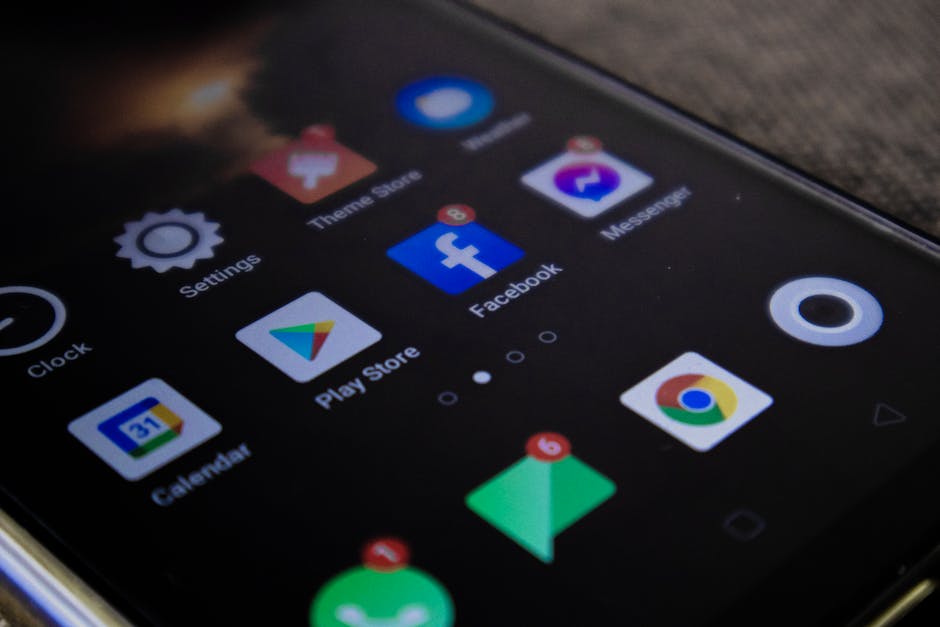
More Than Just Pings: The Core Purpose of Android Notifications
At its heart, an Android notification serves as a temporary, non-intrusive alert from an app. Its primary goal is to inform you about events or activities that require your attention, without demanding immediate action or completely hijacking your screen.
These alerts are crucial for a seamless smartphone experience, allowing apps to communicate with you even when they aren't actively open. Whether it's a new email, a calendar reminder, or an update from your favorite news app, notifications are the bridge between your apps and your awareness.
Think of them as a smart assistant, tapping you on the shoulder only when something relevant happens. They ensure you don't miss out on important interactions or timely information, all while trying to respect your attention and focus.
Inside the Engine: How the Android Notification System Organizes Your Alerts
Behind every ping and visual cue lies a sophisticated architecture. The android notification system doesn't just display messages; it processes, categorizes, and prioritizes them based on various factors. When an app wants to send you an alert, it doesn't just blast it out; it constructs a "notification object" with specific data and instructions.
This object contains everything from the message text and icon to the sound, vibration pattern, and even potential actions you can take directly from the notification itself. The Android operating system then takes this information and presents it to you in a consistent manner, regardless of which app sent it.
A pivotal concept introduced in recent Android versions is "notification channels" (sometimes called notification categories). These channels allow apps to group their alerts by type, giving you unprecedented granular control over which kinds of messages you receive and how you receive them. This system is a game-changer for managing notification fatigue.
The Power of Choice: Diving Deep into Notification Channels
Notification channels are truly the unsung heroes of modern Android. Instead of an all-or-nothing approach for an entire app, channels break down an app's notifications into logical categories. For instance, a messaging app might have channels for "New Messages," "Group Chats," "Call Notifications," and "Promotional Offers."
This segmentation empowers you to customize each type of alert independently. You could choose to have new message alerts ring loudly, while promotional offers only appear silently in your notification shade without any sound or vibration. This level of detail means you only get disturbed by what truly matters to you.
Managing these channels is straightforward; you can usually access them through the app's info page in your phone's settings or directly from a notification itself by long-pressing it. Here’s what you can typically adjust for each channel:
- Importance/Priority: Determine if an alert makes a sound, vibrates, or appears as a heads-up pop-up.
- Sound: Assign a specific ringtone or choose no sound.
- Vibration: Enable or disable haptic feedback.
- Lock Screen Visibility: Decide if the notification shows all content, hides sensitive content, or doesn't show at all.
- Badges: Control whether an app icon displays a small dot to indicate pending notifications.
Beyond the Beep: Exploring Different Notification Styles
The android notification system isn't just about channels; it also offers various ways alerts are presented on your device. Each style serves a different purpose, ensuring you get the information you need in the most appropriate context.
One common style is the "heads-up" notification, which appears as a small floating panel at the top of your screen, briefly displaying the alert before receding. These are typically reserved for high-priority notifications, ensuring immediate visibility without completely interrupting your current activity.
Other styles include traditional alerts that collect in your notification shade for you to review at your leisure, and lock screen notifications that provide quick glances at new information without unlocking your phone. More recently, "Bubbles" allow chat conversations to float over other apps, offering persistent access to ongoing dialogues, much like Facebook Messenger's Chat Heads.
Taking Command: Practical Tips for Managing Your Android Notifications
Feeling overwhelmed by notifications? Taking control is easier than you think. Start by reviewing the notification settings for your most frequently used apps; this is where you can make the biggest impact on your daily digital noise levels.
Long-pressing on an individual notification in your shade often brings up quick options to silence or block future alerts from that specific channel or app. This immediate feedback loop is one of the quickest ways to tailor your experience on the fly.
Don't forget about system-wide features like "Do Not Disturb" (DND) mode. DND allows you to silence all notifications except for specific contacts or app types during designated times, providing invaluable quiet periods. Many Android phones also offer a "Notification History" feature, letting you see alerts you might have accidentally swiped away.
Achieving Digital Zen: A Smarter Approach to Alerts
The goal isn't to block all notifications, but to curate an experience where only the most relevant and important information reaches you. Regularly audit your app permissions and notification channel settings, especially for apps you rarely use or those that send excessive, unimportant alerts.
Consider setting different notification profiles for work, home, or sleep using DND schedules or third-party automation apps. This proactive management can significantly reduce mental clutter and improve your focus throughout the day.
By understanding and actively managing the powerful android notification system, you can transform your smartphone from a source of constant interruption into a finely tuned tool that genuinely serves your needs. Embrace the control it offers, and enjoy a calmer, more focused digital life.