How To Edit Smartphone Photos Like A Professional Photographer
Unlocking the Potential of Your Mobile Camera
Modern smartphones are equipped with incredibly powerful camera systems that rival traditional DSLRs in certain conditions. However, the raw files captured by these devices are often just a starting point, not the finished product. If you truly want to edit smartphone photos like a professional photographer, you need to shift your focus from simply applying filters to mastering deliberate post-processing techniques.
Many people settle for automatic enhancements that often lead to over-processed, unnatural images. True mastery comes when you take manual control over the light, color, and composition of your shots. By understanding a few core principles, you can transform ordinary snapshots into portfolio-worthy imagery right from your phone.
Understanding Your Smartphone's Editing Capabilities
Before diving into third-party applications, take a close look at the editing tools already built into your device. Both iOS and Android native editors have become surprisingly sophisticated, allowing you to adjust exposure, highlights, shadows, and color balance with precision. These tools are often faster to access and perfectly optimized for the files your camera produces.
Using the native editor is excellent for quick corrections or when you want to avoid third-party software overhead. Familiarizing yourself with these basic sliders helps you understand how different adjustments affect your image's overall mood and clarity. Once you master the built-in basics, you will have a solid foundation for more complex editing workflows.

Essential Apps to Edit Smartphone Photos Like a Professional Photographer
To elevate your images, you will eventually want to use dedicated apps that offer advanced features like selective editing, masking, and RAW file support. Apps like Adobe Lightroom Mobile and Snapseed are the industry standards for mobile editing, providing the same level of control used by professionals on desktop computers.
These applications allow for non-destructive editing, meaning your original file remains untouched no matter how many changes you apply. Investing time in learning the interface of one powerful app is far more beneficial than dabbling in dozens of basic editors. Consider exploring these powerful, frequently used features:
- Masking tools for adjusting specific areas of an image without affecting the entire frame.
- Healing brushes to easily remove unwanted distractions or dust spots.
- Curve adjustments to gain absolute control over tone, contrast, and color channels.
- RAW editing capabilities to recover hidden details in shadows and highlights.
Mastering Basic Adjustments: Exposure and Contrast
Exposure is the fundamental building block of a great edit, determining the overall brightness or darkness of your photograph. Instead of relying on auto-adjust, try to manually adjust the brightness while keeping an eye on the histogram. This ensures you are not clipping your whites or crushing your blacks, preserving detail across the entire scene.
Once your exposure is set, contrast brings depth and dimension back to your image. High contrast creates a dramatic, bold look, while low contrast often results in a softer, more ethereal feel. The key is to find the perfect balance that makes your subject pop without sacrificing the natural texture of the scene.

Enhancing Colors and White Balance for a Pro Look
Color grading is perhaps the most distinctive part of a photographer's personal style, and it starts with correcting the white balance. If your photo looks too blue or too yellow, adjusting the warmth slider can immediately make it appear more natural. Achieving accurate color rendition is essential before you start applying creative, stylistic tints.
After color correction, you can use saturation and vibrance to manage the intensity of colors within the frame. Vibrance is particularly useful because it intelligently boosts the more muted colors while avoiding over-saturation of skin tones. Using these tools thoughtfully will help you create a cohesive, professional aesthetic throughout your entire collection of images.
The Art of Cropping and Composition
Sometimes the most effective edit is simply removing elements that detract from your main subject. Cropping allows you to refine your composition, adhere to the rule of thirds, or shift the focus entirely to a more interesting detail within the frame. Don't be afraid to experiment with different aspect ratios, as the crop can significantly change the viewer's experience.
Straightening your horizon lines and ensuring vertical lines are perpendicular to the bottom of the frame is a hallmark of professional work. Even a subtle tilt can make a photo feel amateurish, whereas a perfectly aligned image exudes stability and intent. Always double-check your alignment as one of the very last steps in your editing workflow.
Using Presets and Filters Wisely
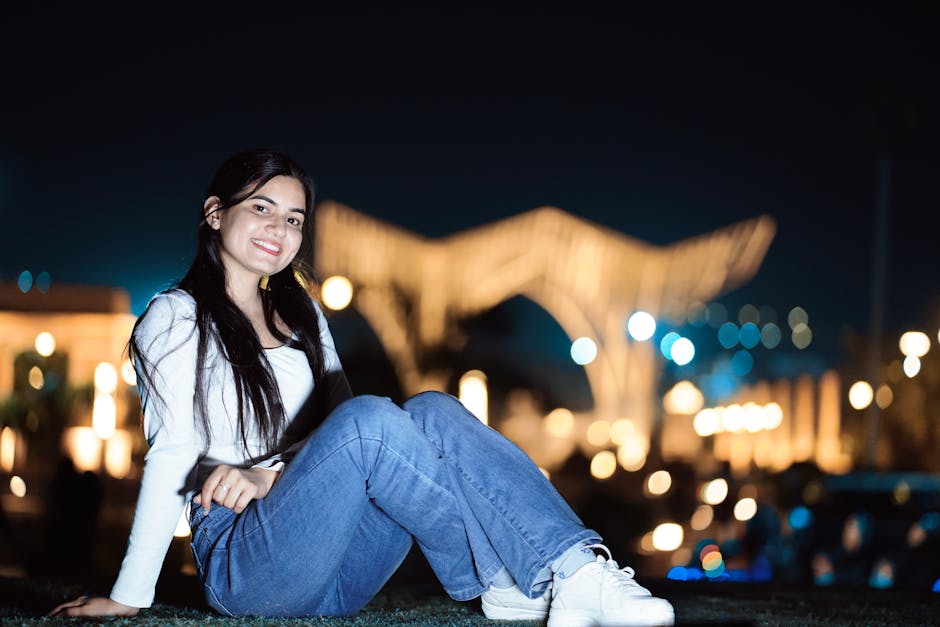
Presets and filters are fantastic tools for achieving a consistent look across a series of photos, but they should never be the final step. A professional photographer understands that every lighting situation requires unique adjustments, and a "one-size-fits-all" preset rarely produces perfect results. Always apply a preset as a starting point, then fine-tune the exposure, contrast, and color sliders to suit that specific image.
Avoid relying on heavy filters that drastically degrade image quality or introduce artificial artifacts. When using presets, it is often wise to dial back the opacity of the effect, letting the original quality of the photo shine through. Your goal should be to enhance the image, not to mask it under an heavy layer of digital processing.
Retouching and Removing Distractions
A truly polished image is free from distracting elements that pull the viewer's eye away from the main subject. Whether it is a stray piece of trash, an unsightly sign, or an accidental bystander, modern mobile editing tools make it incredibly easy to clean up your frame. Use the healing tool carefully, focusing on smaller distractions first to maintain the integrity of the background.
For more complex retouching, such as removing large objects, you may need to take a slower, more deliberate approach with masking and cloning tools. The goal is to make these edits invisible; if you can tell a part of the photo has been altered, you have likely over-edited. Take your time, zoom in close, and ensure the surrounding textures blend naturally.
Maintaining Quality and Exporting Your Best Shots
Everything you have done up to this point can be compromised if you do not export your final image with care. When saving your work, always aim for the highest resolution possible, particularly if you plan to print the photo or share it on platforms that compress imagery significantly. Avoid exporting multiple times, as each cycle of JPEG compression can introduce unwanted artifacts.
Finally, check your image on different screens to see how your edits hold up across various display types. Sometimes, a photo that looks perfect on a high-brightness phone screen may look too dark on a laptop or tablet. Making these final checks ensures that your hard work looks fantastic, regardless of how or where your audience views your photography.