How Android Handles System Alerts
Understanding How Android Handles System Alerts: Your Digital Guardian
In our increasingly connected lives, our smartphones are constantly buzzing with information. From a new message to a critical system update, our Android devices are always trying to communicate with us. But have you ever stopped to wonder exactly how Android handles system alerts? It's more sophisticated than just a simple pop-up; it's a carefully designed system aimed at keeping you informed without overwhelming you.
These alerts are crucial for a smooth user experience, ensuring you don't miss important information or potential issues. Android's approach balances immediate communication with user control, allowing you to tailor your notification experience. Understanding this system empowers you to manage your digital life more effectively.
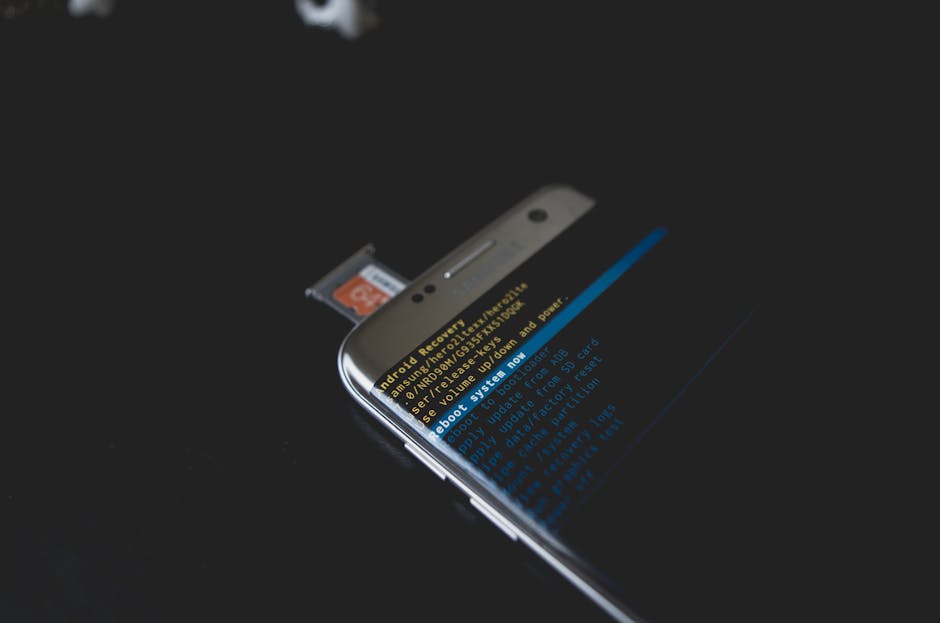
The Spectrum of Android Alert Types
Android utilizes a variety of alert types, each designed for a specific purpose and level of urgency. Not all messages are created equal, and the operating system recognizes this by employing different mechanisms to deliver information.
At its core, these alerts can range from subtle background cues to full-screen interruptions. Knowing the difference helps you understand why your phone behaves the way it does in various situations, from a new email to a low battery warning.
Notifications: Your Primary Communication Hub
The most common and customizable form of alert is the notification, typically found in your notification shade. These persistent messages keep you updated on app activities, incoming communications, and system events. Android's notification system has evolved significantly, offering rich functionality and user control.
"Heads-up" notifications briefly appear at the top of your screen for urgent messages, providing quick information without requiring you to open the notification shade. They fade away after a short period, designed to catch your attention for time-sensitive alerts like incoming calls or critical app warnings.
Beyond the Shade: Other System Alert Mechanisms
While notifications dominate, Android also employs other types of alerts for specific scenarios. "Toast" messages are small, non-interactive pop-ups that appear briefly at the bottom of the screen to confirm an action, like "Message sent" or "Wi-Fi enabled." They are ephemeral and don't require user input.
Another critical alert mechanism comes in the form of dialogs and pop-up windows. These often demand immediate attention and user interaction, such as granting app permissions, confirming a delete action, or informing you of a critical error. These are designed to ensure you acknowledge and respond to significant system requests.
Empowering Users: Customizing Your Alert Experience
One of Android's greatest strengths is the granular control it offers over how you receive alerts. You're not just a passive recipient; you're an active manager of your device's communications. This personalization is key to maintaining focus and minimizing distractions.
Modern Android versions allow you to manage notifications through "Notification Channels," giving you control over different categories of alerts within a single app. This means you can silence promotional messages while still receiving important updates from the same application. Furthermore, the Do Not Disturb (DND) mode is a powerful tool to silence all but the most critical alerts during specific times or events.
- Notification Channels: Fine-tune alerts by category within an app.
- Do Not Disturb (DND): Silence interruptions based on schedule or manual activation.
- App-Specific Settings: Turn off notifications entirely for individual apps.
- Priority Alerts: Allow specific contacts or apps to bypass DND.
Security and Privacy: Alerts as Your Digital Shield
Beyond convenience, system alerts play a vital role in your device's security and privacy. Android is built with a robust security model, and alerts are a cornerstone of keeping you informed and in control of your data. When an app requests access to your camera, microphone, or location, an alert prompts your permission.
These crucial prompts ensure that no application can access sensitive parts of your device or personal data without your explicit consent. Furthermore, Android might issue warnings about malicious apps, unusual background activity, or outdated security patches, acting as your digital guardian against potential threats. Understanding and responding to these alerts is paramount for maintaining your digital safety.
Optimizing Your Android Alert Landscape
Managing how Android handles system alerts effectively is about striking a balance between staying informed and avoiding distraction. Taking a few moments to configure your notification settings can significantly improve your daily experience with your device.
Regularly review your app notification settings, especially for new apps, to ensure they aren't overwhelming you with unnecessary pings. Utilize Do Not Disturb mode during work, sleep, or important meetings to maintain focus. By taking charge of your alerts, you can transform your Android device into a more personalized and less intrusive companion, letting you decide what truly deserves your immediate attention.