Managing Disk Partitions On Linux Versus The Windows Disk Manager
Getting Started with Disk Organization
Whether you are a system administrator or a curious hobbyist, understanding the nuances of managing disk partitions on linux versus the windows disk manager is a fundamental skill for keeping your storage organized. Proper partition management allows you to separate your operating system from your personal data, manage multiple drives efficiently, and improve overall system performance. Both environments offer robust tools, but they take vastly different approaches to how you interact with your hardware.
Windows Disk Management is designed to be accessible, hiding complex technical details behind a visual interface. On the other hand, Linux offers a diverse toolkit that ranges from user-friendly graphical interfaces to incredibly powerful command-line utilities. Choosing the right tool depends heavily on your specific needs, your comfort level with technical tasks, and the complexity of the storage setup you are trying to configure.
The Approachability of Windows Disk Management
The primary advantage of Windows Disk Management is its focus on ease of use and visual clarity. Most users can open the utility, see a representation of their physical drives, and make changes like shrinking or extending partitions with just a few clicks. The tool does an excellent job of preventing common user errors by restricting certain actions while the operating system is in active use.
For those who prefer a guided experience, the Windows interface provides clear visual cues about partition health, file system types, and available free space. It handles basic tasks such as creating new volumes, assigning drive letters, and formatting drives without requiring any advanced knowledge of file systems or mount points. This makes it an ideal starting point for beginners who need to add a new hard drive or resize an existing partition.

Embracing Command-Line Power in Linux
Linux takes a dramatically different approach, prioritizing power, flexibility, and scriptability over a strictly graphical experience. Tools like fdisk and parted allow users to manipulate partition tables with surgical precision, which is particularly useful for complex server environments or custom storage arrays. While these tools can feel intimidating, they provide a level of control that simply is not available in the Windows ecosystem.
Because these utilities are command-line based, they can be incorporated into automation scripts or managed remotely over SSH connections. This makes Linux exceptionally well-suited for repetitive tasks, such as provisioning dozens of identical systems. Administrators can define the partition layout once and apply it across numerous machines, saving significant time and reducing the potential for human error in large-scale deployments.
Comparing Flexibility and Control
When you look deeper into the differences, it becomes clear that Linux tools offer a wider variety of file system support out of the box. While Windows is generally restricted to NTFS, exFAT, and FAT32, a Linux system can natively manage a vast array of file systems, including ext4, Btrfs, XFS, and ZFS. This flexibility allows Linux users to choose the right file system for the specific workload, whether it is high-speed database storage or archival data.
Another major difference lies in how these systems handle drive access and organization. Windows uses drive letters, which can sometimes become confusing when multiple external drives are connected simultaneously. Linux uses a hierarchical structure where every partition is mounted to a specific directory in the file system tree. This approach provides a consistent and predictable way to organize data, regardless of the physical hardware configuration.
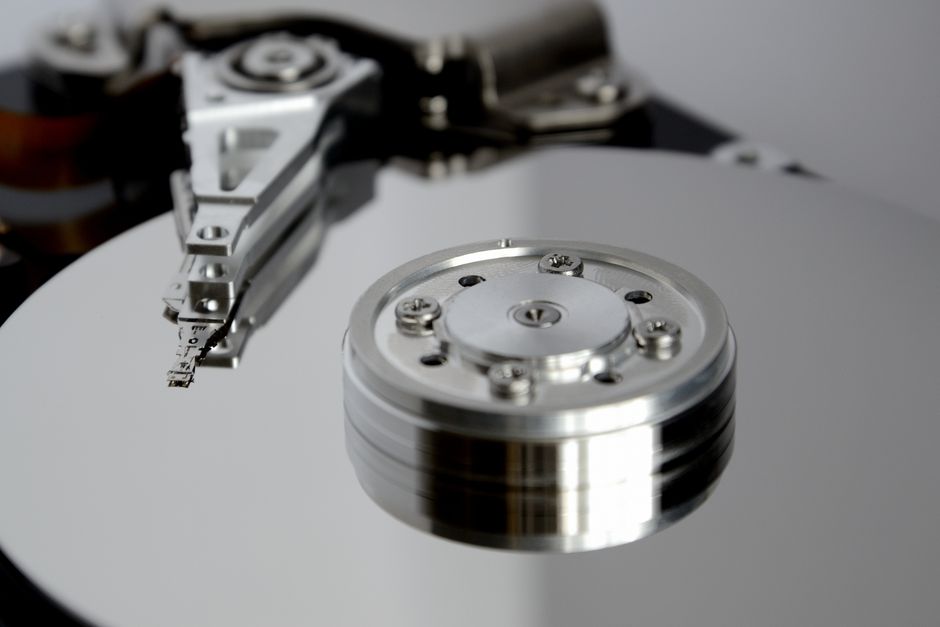
Managing Disk Partitions on Linux Versus the Windows Disk Manager: A Practical Look
If you are trying to decide which environment is better suited to your needs, consider the nature of your tasks. Windows Disk Management is fantastic for quick, straightforward adjustments on a personal computer where you want a reliable, visual confirmation of your changes. It minimizes the risk of accidental data loss by keeping the most dangerous options hidden and providing clear warnings before formatting or deleting volumes.
In contrast, when you are managing disk partitions on linux versus the windows disk manager, you are often looking for granular control or specific features like LVM (Logical Volume Management). LVM allows you to resize partitions across multiple physical disks dynamically, a feature that Windows does not support in the same way with its basic disk management tools. If your storage needs require high availability, snapshotting, or complex volume spanning, Linux tools are the clear winner.
Deciding Between Graphical and Terminal Tools
It is important to remember that Linux is not exclusively a terminal-based experience. Many desktop distributions include graphical partition editors, such as GParted, that offer an experience comparable to the Windows Disk Manager. These tools provide the best of both worlds: a user-friendly, visual interface backed by the power and flexibility of underlying Linux partitioning libraries.
For many users, GParted is the perfect middle ground, offering:
- An intuitive interface for resizing, moving, and copying partitions.
- Visual representation of partition tables and disk space.
- Support for a wide variety of file systems like ext4, XFS, and NTFS.
- The ability to apply all changes at once after previewing the operations.
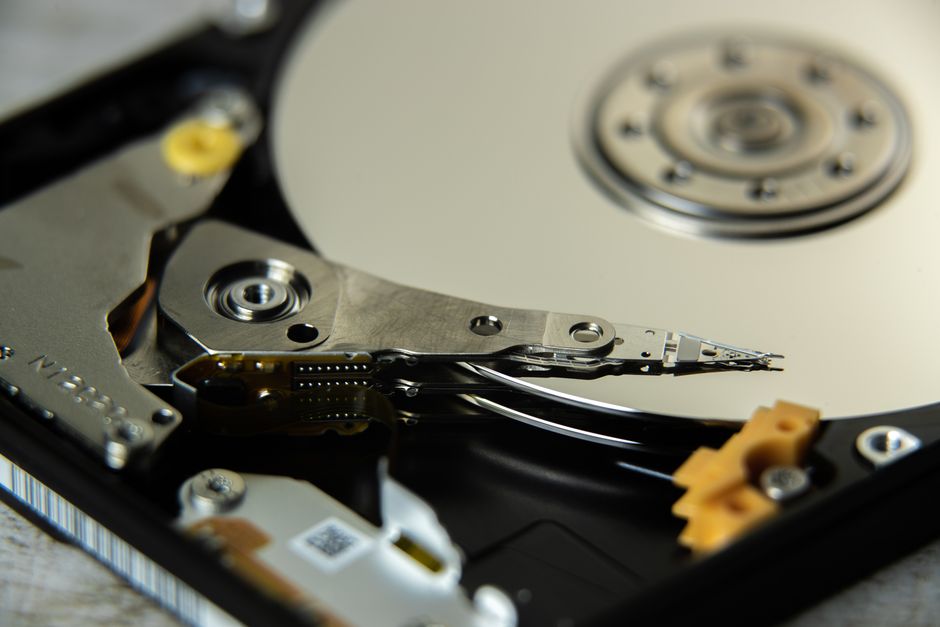
Essential Tips for Safe Drive Management
Regardless of whether you are working in Windows or Linux, the most important rule of partition management is to always maintain backups of your critical data before making changes. Even with modern, stable tools, partition manipulation is an inherently risky activity that can lead to data loss if an error occurs or if power is lost mid-operation. Always verify you are working on the correct drive before executing any destructive commands.
Furthermore, taking the time to properly label your partitions can save you a lot of headache in the long run. Whether you use volume labels in Windows or filesystem labels in Linux, descriptive names make it significantly easier to identify what each partition is for. This simple habit prevents confusion and helps ensure you do not accidentally overwrite the wrong drive during maintenance tasks.
Final Thoughts on Disk Flexibility
Disk partitioning is a fundamental component of managing your digital workspace, and both Windows and Linux provide capable solutions. Windows emphasizes safety and simplicity, making it ideal for standard desktop users. Linux, while offering a steeper learning curve, empowers power users and administrators with unparalleled control and flexibility.
Understanding these fundamental differences helps you choose the right tool for the job. Whether you stick with the familiar Windows environment or dive into the versatile world of Linux, mastering these tools ensures that your storage setup remains efficient, organized, and reliable. Regardless of your choice, the best path forward is always to approach disk management with patience, preparation, and, above all, a current backup of your data.