Understanding Cpu Vs Gpu Bottlenecks In Gaming
Understanding the CPU vs GPU Bottleneck in Gaming
Ever felt like your high-end gaming PC is underperforming? It is a common frustration, and more often than not, it boils down to understanding the delicate balance between your processor and your graphics card. Grasping the concept of a CPU vs GPU bottleneck is the first step toward getting the smooth frame rates you expect from your hardware.
You do not need to be a hardware expert to make sense of how these components interact. By understanding their distinct roles and how they work together, you can better diagnose performance issues and decide where your next upgrade budget should go. This knowledge is essential for any PC gamer looking to get the best experience from their machine.
Defining the Roles of Your Hardware
Your CPU acts as the brains of the entire operation, handling complex game logic, physics calculations, AI behavior, and essential draw calls. Every action you take or enemy you encounter requires instructions to be generated by the processor and sent to the graphics card for visualization. Think of it as the project manager, deciding exactly what needs to be built and when.
The GPU is the artist, taking those instructions and rendering the beautiful textures, complex lighting, and high-fidelity geometry you see on your screen. When these two components fail to sync perfectly, you experience annoying performance hiccups. A well-optimized game requires the CPU to feed the GPU just enough data to keep it busy without overwhelming the system.

The Reality of a CPU vs GPU Bottleneck
Imagine a busy kitchen where one chef, the CPU, is chopping vegetables frantically but cannot keep up with the other chef, the GPU, who is ready to plate the meal. The entire output slows down because the first chef is creating a CPU vs GPU bottleneck for the second. The faster chef is forced to wait, wasting their potential because the slower one is struggling to keep pace.
In gaming, this translates to your graphics card waiting around for the processor to tell it what to draw next. Conversely, if your processor is incredibly fast but your graphics card is older or less powerful, the GPU becomes the limiting factor. This prevents you from pushing higher resolutions or more demanding graphical settings, even though the CPU is ready for more.
Signs You Are Facing a CPU Bottleneck
If your processor is the limiting factor, you might notice your frame rates struggle regardless of how much you turn down the graphics settings. This often happens in games heavy on simulation, massive open worlds, or titles with a high density of player characters. Your CPU has to calculate positions, movement, and interactions for hundreds of objects simultaneously, which creates a significant bottleneck before the GPU even gets a frame to render.
Look out for these common indicators of a CPU-limited system:
- Frame rates that remain low even at lower resolutions like 1080p.
- Stuttering or hitching when entering busy urban areas or chaotic combat scenarios.
- CPU usage metrics showing one or more individual cores pinned near 100 percent usage.
- Improved performance when lowering CPU-specific settings like crowd density or draw distance.
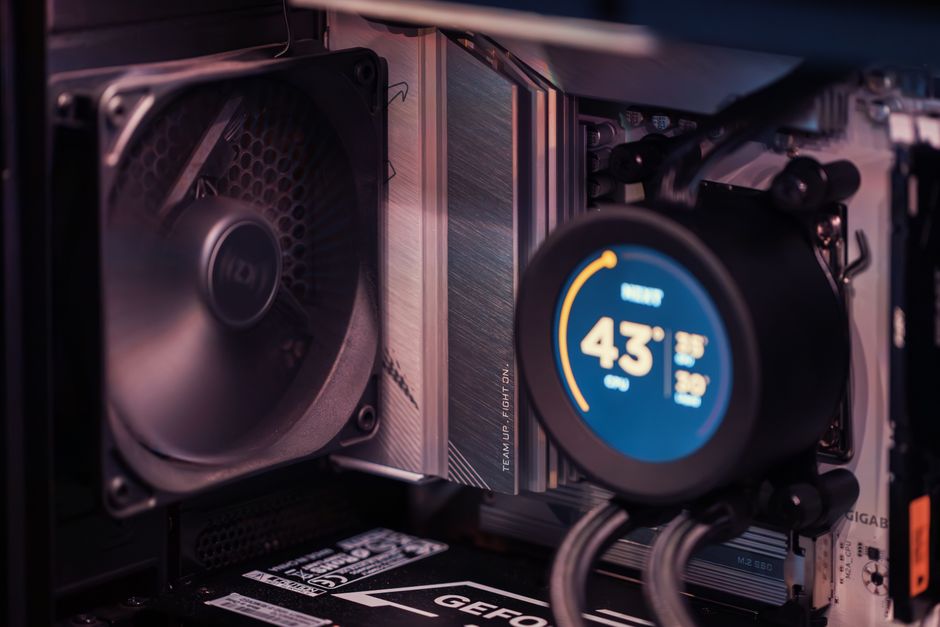
Detecting a GPU Bottleneck
A GPU bottleneck is much more common and arguably the preferred scenario for gamers because it means your graphics card is being utilized to its full potential. You will see this happen when you push the game to high or ultra settings, especially at higher resolutions like 1440p or 4K. The GPU is doing exactly what it was designed to do, working as hard as it can to render complex pixels.
When your graphics card cannot process the high-resolution textures and complex effects quickly enough, the frame rate drops. Since the CPU is ready and waiting for more tasks, increasing graphical settings will almost always lead to a noticeable drop in performance in this scenario. This is exactly what you want when you are aiming for high-quality visuals over raw frame count.
The Crucial Role of Resolution
Understanding how resolution affects your hardware is crucial, as the workload shifts dramatically based on your monitor settings. Lowering the resolution places more relative stress on the CPU, as it has to prepare more frames per second for the GPU to render. The faster the game runs, the more work the processor has to do to keep up with the frame throughput.
Conversely, moving to 1440p or 4K resolution shifts the burden onto the GPU, as the sheer number of pixels being rendered increases significantly. This is why you might find that your high-end CPU feels like the bottleneck at 1080p but disappears once you crank the resolution up to 4K. The GPU simply cannot keep up with the pixel demand at those higher settings, rendering the CPU speed less critical.
Tools to Help You Monitor Performance
You cannot guess your way to a solution; you need real-time data to understand your system's behavior. Several free tools allow you to track hardware utilization metrics like temperature, core usage, and rendering times while you play. These data points provide a clear picture of which component is struggling to keep up during intense gameplay.
Programs like MSI Afterburner or the built-in overlays from Nvidia and AMD are perfect for this task. By displaying your CPU and GPU usage percentages on screen, you can immediately identify which component is nearing its limit. If the GPU is consistently at 99 percent while the CPU is at 50 percent, you know exactly where your bottleneck lies.
Strategies to Mitigate Bottlenecks
If you find yourself limited by the CPU, consider closing background applications like web browsers, recording software, or voice chat clients that consume processing power. Additionally, you can adjust in-game settings that are CPU intensive, such as crowd density, complex physics interactions, or extensive view distances. These changes often free up enough headroom to improve your minimum frame rates, which is more important than average FPS for a smooth experience.
For those facing a GPU limit, the solution is often straightforward, though sometimes expensive. You can lower graphical settings like anti-aliasing, shadow quality, or ray tracing, which significantly reduces the rendering load on the graphics card. If you are desperate for better visual quality, you may ultimately need to upgrade to a more powerful graphics card to handle those higher settings.