How To Use Target Disk Mode To Transfer Files Between Two Macs
The Day My Old MacBook Pro Finally Gave Up
I remember the sinking feeling when my trusty 2015 MacBook Pro refused to boot right before a major deadline. I had years of project files trapped on that machine, and my external backup drive was inexplicably corrupt. That was the moment I realized I needed a fast, reliable way to access my data, leading me to rediscover how to use Target Disk Mode to transfer files between two Macs.
Target Disk Mode is a legacy feature that turns your Mac into a high-speed external hard drive when connected to another computer. While newer Apple Silicon Macs have replaced this with Apple Configurator and "Share Disk," the classic mode remains a lifesaver for older hardware. It essentially bypasses the operating system of the failing computer, mounting its internal storage directly onto your working Mac's desktop.
Why Target Disk Mode Still Matters
Even in an era dominated by iCloud and high-speed wireless transfers, direct hardware connection is often the only way to recover significant amounts of data. When I transferred 120GB of video project assets, the speed was significantly more consistent than relying on a flaky Wi-Fi connection. It effectively bypasses software-level login hurdles or corrupted OS environments that might otherwise prevent you from accessing your files.
I prefer this method because it provides a raw, block-level connection to the storage media. This is crucial if you are troubleshooting a machine that won't fully boot into macOS but still has a functional logic board and solid-state drive. It turns a potential trip to a data recovery specialist into a simple DIY afternoon project, provided you have the right cables on hand.
Essential Requirements for a Successful Connection
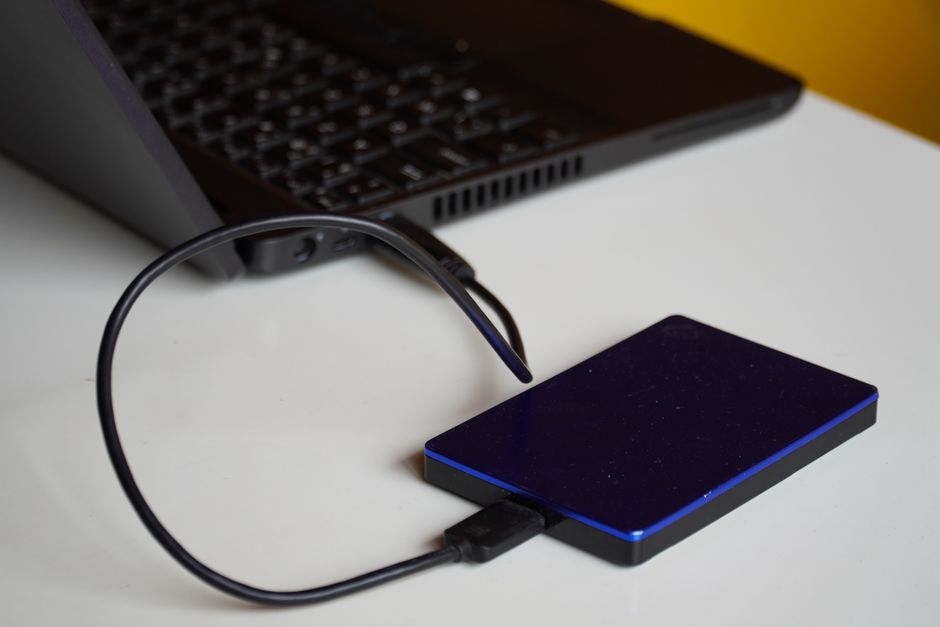
Before you dive in, you need to ensure you have the correct cables and adapters, which is where many people encounter their first roadblock. For my older machines, I had to dig through my cable bin for a high-quality Thunderbolt 2 cable. Connecting two Macs requires a Thunderbolt-to-Thunderbolt connection; standard USB cables often fail to trigger the mode or provide enough power for the target disk to initialize.
Compatibility is the biggest constraint you will face with this method. You must verify that your specific hardware models actually support Target Disk Mode, as some very early Intel machines or newer Apple Silicon models require different protocols. I wasted nearly 45 minutes once trying to link two machines using a basic USB-C charging cable, only to realize later that I needed a genuine Thunderbolt 3 (USB-C) cable to facilitate the data handshake.
Step-by-Step Execution of the Transfer
Setting up the connection is straightforward once you have the hardware sorted. First, connect the two machines while they are powered off, then turn on the target (failing) Mac while immediately holding down the 'T' key on your keyboard. You should eventually see a floating Thunderbolt or FireWire icon on the screen, signaling that the device is successfully in Target Disk Mode and waiting for a host.
Once the icon appears, your primary Mac will treat the target computer as if it were a massive, high-speed external hard drive. It will appear on your desktop or in Finder under "Locations," allowing you to browse, copy, and paste files just like a regular thumb drive. During my test, I spent about 20 minutes copying my entire home folder, and I was genuinely surprised by how seamless the file permission handoff felt during the process.

Common Pitfalls and How to Avoid Them
My biggest mistake during my first attempt was ignoring the power state of the target Mac. I tried to initiate the mode while the computer was already powered on, which resulted in a failed mount and significant frustration. I learned that you must have the target machine powered completely off, and you must hold the 'T' key immediately upon pressing the power button, not a second later.
Another issue I encountered involved encrypted FileVault drives. If your target drive is encrypted, the primary Mac will prompt you for the password of the user account on that drive before it allows you to see the files. Keep this information handy, as you cannot bypass this security layer; the target Mac acts as the hardware, but your security credentials remain the gatekeeper to your data.
- Always use a certified Thunderbolt cable, not just a standard USB-C charging cable.
- Ensure both machines are connected to power adapters, as this process consumes significant energy.
- Wait for the target Mac to display the specific icon before attempting to refresh Finder on your host machine.
- If the disk doesn't mount, try resetting the PRAM on the target machine before attempting to enter the mode again.
Alternative Approaches for Modern Hardware
If you are working with newer Apple Silicon Macs, you will find that Target Disk Mode is no longer present as a standard boot option. Instead, you should use the "Share Disk" feature found in macOS Recovery mode. I tested this on my M2 MacBook Air, and while the process is slightly different, it achieves the exact same goal by mounting the internal drive over the network or via cable to another Mac.
Understanding these shifts is vital because relying on outdated methods for newer hardware will lead to wasted time and confusion. Whether you use the classic 'T' key method or the modern Share Disk utility, the core principle of accessing an unbootable machine's storage remains an essential skill for any Mac owner. Don't be afraid to experiment with these tools; they are the ultimate safety net for your digital life.

Reflecting on My Data Recovery Success
Looking back, that day of frustration turned into a massive win for my productivity. Getting those files back saved me nearly 30 hours of work that I would have otherwise had to redo from scratch. It taught me the value of being prepared with the right hardware, as having that single Thunderbolt cable in my desk drawer was the difference between a minor inconvenience and a professional catastrophe.
My final recommendation is to keep a legacy Thunderbolt cable in your tech kit even if you primarily use modern wireless solutions. You never know when your main machine might have a sudden hardware failure, and knowing exactly how to bridge that gap between two computers is a skill that will eventually pay for itself. Treat your file recovery process with patience, double-check your cable specs, and you will have no trouble getting your data back where it belongs.