How Ios Manages Alerts And Notifications
Understanding How iOS Manages Alerts and Notifications
In our increasingly connected world, our iPhones are constant companions, keeping us in the loop with a steady stream of information. From important work emails to social media updates and critical safety alerts, staying informed is key. However, this constant connection can quickly become overwhelming if not managed properly.
That's where the sophisticated system for alerts and notifications on your iPhone comes in. Apple has spent years refining its approach to give you control, ensuring you see what's important when it matters, without being constantly distracted. Let's dive deep into understanding how iOS manages alerts and notifications, empowering you to take charge of your digital experience.
This guide will walk you through the various features and settings that define your iPhone's notification ecosystem. You'll discover how to fine-tune your alerts, minimize distractions, and make your device work smarter for your peace of mind.
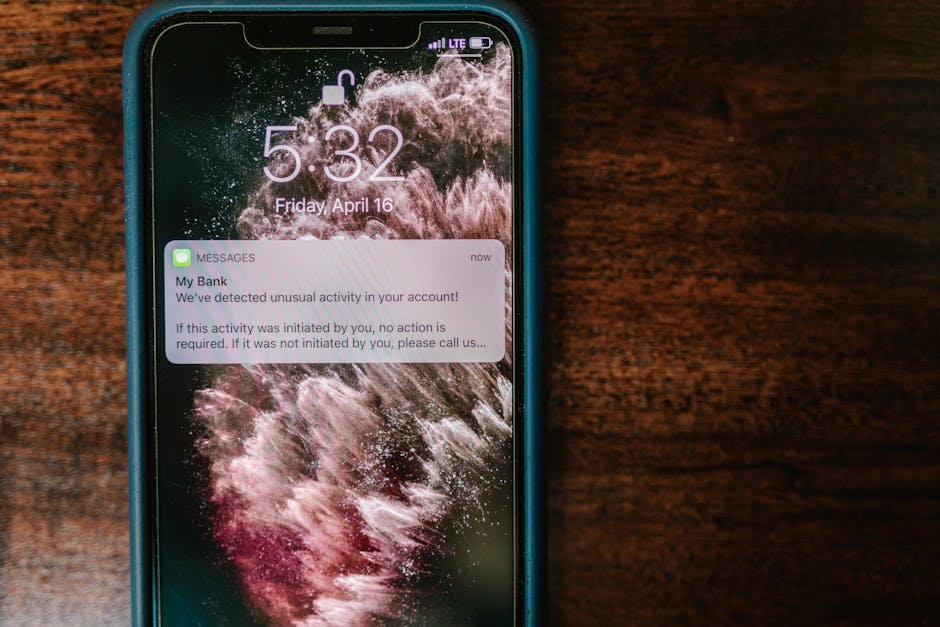
The Notification Center: Your Central Hub for iOS Alerts
Think of the Notification Center as the central repository for all your incoming alerts. Whenever you miss a banner or an alert, or simply want to review recent activity, this is where you'll find it neatly organized.
A simple swipe down from the top of your screen reveals the Notification Center, showing you a chronological list of all recent notifications. iOS intelligently groups these alerts by app, making it easy to see all updates from a specific service at a glance. You can expand these groups to view individual messages or collapse them for a cleaner look.
From here, you can interact with notifications directly: tap to open the app, swipe left to manage options like clearing or muting, or simply dismiss them. This intuitive design ensures that even if you're not constantly checking your phone, you won't miss anything important.
Different Styles of iOS Alerts and How They Appear
iOS employs several distinct styles to present notifications, each designed for different levels of urgency and interaction. Understanding these styles helps you decide how you want each app to grab your attention.
The most common are banners, which appear briefly at the top of your screen and then disappear, often without requiring immediate action. Then there are alerts, which are more persistent, appearing in the center of the screen and requiring you to tap an option before you can continue using your device. Finally, badges are the little red circles with numbers that appear on app icons, indicating unread items or pending actions.
Beyond these visual cues, notifications can also include sounds, vibrations, and even illuminate your screen. You have the power to customize which of these elements are used for each app, tailoring the alert experience to your personal preference and the app's importance.

Focus Modes: Taking Control of Your Digital Well-being
One of the most powerful features for managing your digital interruptions is Focus Modes. Introduced to help users minimize distractions and concentrate on specific tasks, Focus Modes go far beyond the simple "Do Not Disturb" of previous iOS versions.
With Focus Modes, you can create custom profiles for different aspects of your life, such as "Work," "Personal," "Sleep," or even a custom "Gaming" mode. Each Focus Mode allows you to specify which apps can send notifications, which contacts can break through with calls or messages, and even customize your Home Screen layout to show only relevant apps.
These modes can be activated manually, scheduled to turn on automatically based on time or location, or even triggered when you open a specific app. This granular control means your iPhone adapts its notification behavior to your current activity, promoting a healthier balance with your device.
Customizing Notifications for Each Application
The true magic of managing notifications on iOS lies in the ability to customize settings for every single app on your device. This granular control ensures that your most critical apps get your immediate attention, while less urgent ones can be relegated to a quieter presence.
To access these powerful settings, simply go to `Settings > Notifications` and then select any app from the list. Here, you'll find a wealth of options to perfectly tune its notification behavior.
For each app, you can typically adjust the following preferences:
- Allow Notifications: The main toggle to permit or block all notifications from the app.
- Alerts: Choose between Lock Screen, Notification Center, and Banners for where alerts appear.
- Banner Style: Decide if banners are Temporary (disappear on their own) or Persistent (require manual dismissal).
- Sounds & Badges: Toggle whether the app plays a sound or displays a badge on its icon.
- Show Previews: Control whether notification content is shown on the Lock Screen or only when unlocked.
- Notification Grouping: Choose how notifications from this app are grouped in the Notification Center (Automatic, By App, or Off).
Regularly reviewing and adjusting these settings for your frequently used apps can dramatically reduce unnecessary interruptions and improve your overall focus.
Scheduled Summaries: Batching Your Distractions Effectively
For notifications that aren't time-sensitive but still need your attention, iOS offers a brilliant feature called Scheduled Summaries. This allows you to receive a daily digest of less urgent notifications at times you choose, rather than getting them sporadically throughout the day.
Imagine your social media updates, marketing emails, or game notifications all delivered in one concise summary, twice a day. This significantly cuts down on the constant pings and vibrations that can break your concentration, letting you check these updates when it's convenient for you.
You can customize which apps contribute to your summary and set up to two delivery times per day. It’s an excellent way to maintain awareness without sacrificing focus on your most important tasks, transforming a chaotic stream into a manageable digest.
Critical Alerts: When Urgent Matters Most
While Focus Modes and Scheduled Summaries are designed to minimize interruptions, there are times when an alert is genuinely critical and needs to bypass all your custom settings. This is where Critical Alerts come into play.
Critical Alerts are a special category of notifications that are allowed to play a sound and appear on the Lock Screen even when your iPhone is in Do Not Disturb mode or a custom Focus Mode. These are reserved for truly urgent information that impacts your health, safety, or security.
For example, a medical alert app reminding you to take vital medication, a home security system detecting a break-in, or a flood warning from a government app might use Critical Alerts. Apps must apply for and be granted specific permission from Apple to use this feature, ensuring it's not abused and is only used for genuinely life-critical situations.
Mastering Your Notification Inbox for Greater Peace of Mind
Effectively managing notifications is an ongoing process, but with the robust tools iOS provides, you're well-equipped to create an environment that supports your productivity and well-being. The key is to be proactive and intentional with your settings.
Start by auditing your apps: ask yourself which ones truly need to notify you instantly, and which can wait. Use Focus Modes to segment your day and tailor your alerts to your current context. Don't be afraid to utilize Scheduled Summaries for those less urgent but still important updates.
Regularly review your notification settings for new apps or apps whose importance has changed. By investing a little time in understanding how iOS manages alerts and notifications, you can transform your iPhone from a potential source of constant distraction into a powerful tool that serves your needs, on your terms.