Ios Notification Center Explained
What is the iOS Notification Center, Anyway?
Ever feel overwhelmed by the constant pings and alerts on your iPhone? That's where the iOS Notification Center steps in as your digital command hub. It's the central place where all your app alerts, messages, reminders, and system notifications gather, giving you a quick overview of everything that needs your attention.
Think of it as your iPhone's personal assistant, meticulously organizing every piece of information that tries to grab your eye. This powerful feature is designed not just to show you what's happening, but also to help you manage the flow, ensuring you see what's important without getting bogged down by digital noise. Mastering it is key to a more peaceful iPhone experience.
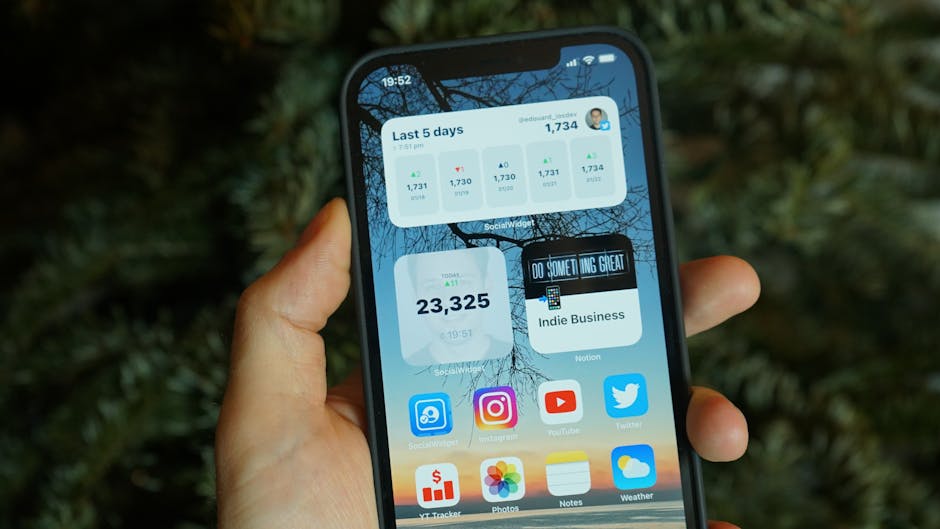
Your Daily Dose of Alerts: Accessing the Notification Center
Getting to your notifications is incredibly straightforward, no matter what you're doing on your iPhone. If your phone is locked, a quick swipe up from the middle of the Lock Screen reveals all your recent alerts, neatly stacked for easy viewing. You can then interact with them directly or unlock your phone for more options.
If you're already using your phone, simply swipe down from the top center of the screen – right where the notch or Dynamic Island is. This gesture instantly brings down the Notification Center, showing you everything you might have missed while you were busy. It's a convenient way to catch up on updates without leaving your current app.
Beyond the Beep: Understanding Notification Styles
iOS doesn't just throw notifications at you; it offers several distinct styles to keep you informed. Understanding these different types is the first step to truly customizing your experience. Each style serves a specific purpose and has varying levels of intrusiveness.
You'll encounter a few main types: Lock Screen notifications appear when your phone is locked, giving you a glanceable alert without unlocking. Banners pop up briefly at the top of your screen while you're using your phone, then disappear on their own. And Badges are those little red circles with numbers that appear on app icons, indicating unread items. Knowing these helps you decide how each app should alert you.

Taking Control: Customizing App Notifications
This is where the magic happens for taming your digital life. Every app on your iPhone has its own set of notification preferences, and you have complete control over each one. Diving into these settings allows you to fine-tune exactly how and when you're interrupted.
To customize, head to Settings > Notifications and tap on any app in the list. Here, you'll see a wealth of options. You can choose whether an app can send notifications at all, and then specify how they appear:
- Allow Notifications: The master switch for an app.
- Alerts: Choose between Lock Screen, Notification Center, and Banners.
- Sounds: Turn notification sounds on or off for that specific app.
- Badges: Enable or disable the red count on the app icon.
- Show Previews: Decide if notification content should show when locked, always, or never.
- Notification Grouping: How notifications from this app are organized (automatically, by app, or off).
By adjusting these settings for your most active apps, you can significantly reduce distractions. Want social media updates silently delivered to the Notification Center without a sound? Easy. Need important work emails to always show on your Lock Screen? You can do that too. It's all about making your iPhone work for you.
Silence the Noise: Mastering Focus Modes
For those times when "do not disturb" just isn't enough, Apple introduced Focus Modes, a game-changer for managing the iOS Notification Center. Focus allows you to create custom environments that filter notifications and even home screen pages based on what you're doing. This means you only get alerts from people and apps that matter in that specific context.
Whether you're working, sleeping, driving, or just trying to relax, Focus Modes can intelligently silence distractions. You can set up different Focus profiles, like "Work" which might only allow notifications from colleagues and productivity apps, or "Sleep" which silences everything except calls from your emergency contacts. It's a powerful tool for maintaining concentration and digital well-being.
Batching Your Buzz: Notification Summaries to the Rescue
Not every notification needs your immediate attention. For those less urgent alerts, iOS offers Notification Summaries, a brilliant way to batch notifications and deliver them to you at scheduled times throughout the day. This keeps your Lock Screen and Notification Center less cluttered, preventing a constant stream of minor updates.
When you enable a Notification Summary (found under Settings > Notifications > Scheduled Summary), you can select which apps contribute to it and at what times you'd like to receive the digest. Instead of ten separate pings from news apps or social media, you get one consolidated summary at, say, 8 AM and 5 PM. It's a fantastic way to check in on less critical updates on your own schedule.
Quick Taps and Swipes: Interacting with Notifications
Notifications aren't just for reading; they're often interactive! From the Lock Screen or Notification Center, you can perform quick actions without even opening the associated app. This saves you time and keeps your workflow smooth.
A simple swipe left on a notification reveals options like "Manage" (to adjust settings for that app) or "Clear." A long press (or Haptic Touch) on a notification often expands it, allowing you to reply to messages, view more details, or perform specific app actions like marking an email as read or snoozing a reminder. These quick interactions are designed to help you deal with alerts efficiently and get back to what you were doing.
Ninja Moves: Advanced Tips for Notification Zen
Beyond the basics, there are a few pro tips to truly optimize your iOS Notification Center experience and achieve digital serenity.
- Review App Settings Regularly: Apps constantly update and sometimes reset notification defaults. Periodically check your "Settings > Notifications" list, especially after app updates.
- Use "Deliver Quietly": For apps that you don't want to silence entirely but also don't need audible alerts from, swipe left on a notification and tap "Options," then "Deliver Quietly." These notifications will appear in your Notification Center but won't make a sound or show on the Lock Screen.
- Customize Focus Modes Deeply: Don't just stick to the defaults. Explore allowing specific people to break through a Focus, or set up automations so your Focus activates when you arrive at a certain location or open a particular app.
- "Time Sensitive" Notifications: For truly critical alerts, some apps can send "Time Sensitive" notifications that bypass most Focus modes. Ensure only essential apps use this privilege in their notification settings to prevent abuse.
By employing these strategies, you can transform your iPhone from a constant source of interruptions into a helpful tool that delivers information on your terms. Taking control of your notifications is a significant step towards a less cluttered and more focused digital life.