How To Manage White Balance For Accurate Smartphone Photo Colors
Demystifying What White Balance Actually Does
Have you ever looked at a sunset photo you captured and felt it looked way too blue or oddly orange instead of the vibrant tones you saw in person? That is a classic example of your camera sensor getting the white balance wrong. Learning how to manage white balance for accurate smartphone photo colors transforms your images from amateur, off-colored snapshots into professional-looking shots that feel true to life.
At its core, white balance is simply a setting that tells your camera what color temperature is currently present in the scene. Cameras are not like the human eye, which automatically adjusts to different light sources like sunlight, incandescent bulbs, or fluorescent tubes. Without proper white balance, the sensor can easily mistake the warmth of a sunset or the coolness of shade for a color cast, resulting in skin tones that look sickly or landscapes that lack natural vibrancy.
Why Your Smartphone Often Gets Colors Wrong
Modern smartphone cameras are incredibly smart, but they still rely on algorithms that make "best guesses" based on the overall scene. When you are shooting outdoors on a bright day, the automatic white balance usually does a fantastic job. However, as soon as you step into challenging lighting scenarios, that automated intelligence often falters, leading to inconsistent color reproduction across your gallery.
Mixed lighting is the most common culprit behind those strange, inaccurate colors that seem impossible to fix. For example, if you are photographing someone standing near a window with sunlight hitting one side of their face and a warm indoor lamp illuminating the other, the camera becomes confused. It tries to balance for both light sources simultaneously, which usually results in a messy, unnatural color temperature that fails to represent the scene accurately.

How to Manage White Balance for Accurate Smartphone Photo Colors
The first step toward mastering your colors is realizing that you do not have to settle for the camera's automated decision. Many modern smartphones provide built-in tools that allow you to make quick adjustments before you even press the shutter button. By taking control, you can ensure the mood and atmosphere of the moment are captured exactly as you intended.
To start taking control, consider these simple techniques:
- Tap to Focus: On most phones, tapping the subject on your screen helps the camera calibrate both exposure and white balance for that specific point.
- Use Preset Modes: Look for icons representing different lighting conditions, such as daylight, cloudy, or tungsten, which can force the camera to adjust to the specific environment.
- Check Exposure Sliders: Many phones offer an exposure slider that can indirectly influence how the camera perceives color when light is uneven.
Taking Control with Pro or Manual Modes
If you want to truly master your photography, diving into the manual or Pro mode is the best path forward. Most high-end smartphones now offer a dedicated mode that lets you adjust the Kelvin scale manually. This gives you precise control over the warmth or coolness of your images, moving well beyond what the automatic settings can provide.
When adjusting the Kelvin scale, remember that lower numbers around 3000K will add a blue, cool tint to your photos, while higher numbers moving toward 7000K or 8000K will add warmth and golden tones. Playing with these sliders while looking at your scene in real-time is the most effective way to understand how light temperature impacts the final image. You will quickly find that manual adjustments turn average shots into high-quality photographs.

The RAW Advantage for Color Precision
Shooting in RAW format is a game-changer if you want total control over your final image colors. Unlike a JPEG file, which applies permanent white balance processing the moment the photo is taken, a RAW file captures all the data from the camera sensor exactly as it was received. This means you can change the white balance entirely during the editing process without losing any image quality.
When you shoot in RAW, you are essentially creating a digital negative that gives you maximum flexibility to manage white balance for accurate smartphone photo colors later on. You no longer have to stress about getting the perfect balance in the moment, as you have the freedom to experiment with different temperatures in post-production. While RAW files are larger and require editing, the difference in color fidelity and control is massive for anyone serious about mobile photography.
Fixing Color Casts in Post-Production
If you have already taken a photo and it looks a little bit off, you can still easily correct it using basic mobile photo editing apps. Most free editing suites provide a simple white balance or warmth tool that allows you to shift the overall color cast of your image. This is a powerful tool to salvage photos that might otherwise be discarded.
The goal in post-processing is to restore a neutral balance so that whites look white and skin tones look natural. Start by adjusting the temperature slider slowly, paying attention to the highlights in the photo, and then use the tint slider if you notice unwanted green or magenta shifts. Subtle adjustments are almost always better than drastic changes, as they keep the photo looking realistic rather than heavily processed.
Mastering Mixed Lighting Situations
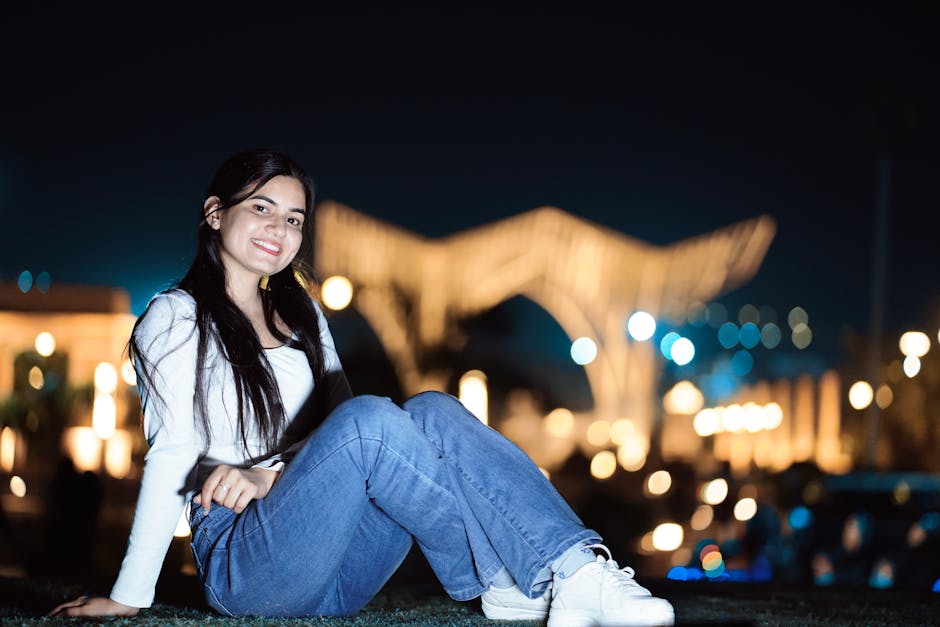
Mixed lighting is perhaps the hardest scenario to handle, but understanding it is essential for better results. When you cannot avoid having two different light sources, try to decide which one is the main subject and balance for that specific light. If you are shooting a portrait, always prioritize the white balance for the person’s face rather than the background.
Sometimes the best solution is to move slightly so that one light source becomes dominant, or you can use your body to block one of the light sources entirely. If you have the ability to turn off an offending lamp or open a curtain to let in more natural light, do so. Being intentional about the light hitting your subject will always produce far more accurate colors than hoping the camera software figures it out on its own.