How Ios Connects With Mac And Ipad
The Apple Ecosystem: How iOS Connects with Mac and iPad for a Seamless Experience
How often have you started something on your iPhone, only to wish you could instantly move it to your Mac or iPad without missing a beat? If you're an Apple user, you're likely familiar with the incredible synergy these devices offer. This article will explore how iOS connects with Mac and iPad, showcasing the brilliant engineering that makes the Apple ecosystem so powerful and intuitive. It's not just about owning multiple devices; it's about them working together as one cohesive unit.

The Core of Apple's Ecosystem: Continuity Features
At the heart of this seamless experience lies Apple's "Continuity" features. This suite of functionalities ensures that your Apple devices don't just exist side-by-side but actively communicate and collaborate. It's designed to make your digital life flow effortlessly, moving tasks and information between your iPhone, iPad, and Mac.
Imagine starting an email on your iPhone while commuting, then arriving at your desk and finishing it on your Mac with a full keyboard and larger screen. This isn't magic; it's the result of deeply integrated software and hardware. These features dramatically enhance productivity and convenience for anyone using multiple Apple products.
Handoff and Universal Clipboard: Your Work, Uninterrupted
Two standout features that exemplify this cross-device harmony are Handoff and Universal Clipboard. Handoff allows you to start an activity on one device and seamlessly continue it on another compatible device nearby. Whether you're browsing Safari, drafting an email, or even editing a document, Handoff ensures your work is always within reach, no matter which screen you're using.
The Universal Clipboard takes convenience a step further. It allows you to copy text, images, photos, and videos on one Apple device and then paste that content onto another Apple device. This means you can copy a recipe ingredient list from your iPad and paste it directly into a grocery app on your iPhone, or grab an image from your Mac to drop into a message on your iPad, all without any extra steps.
Expanding Your Workspace with Sidecar and Universal Control
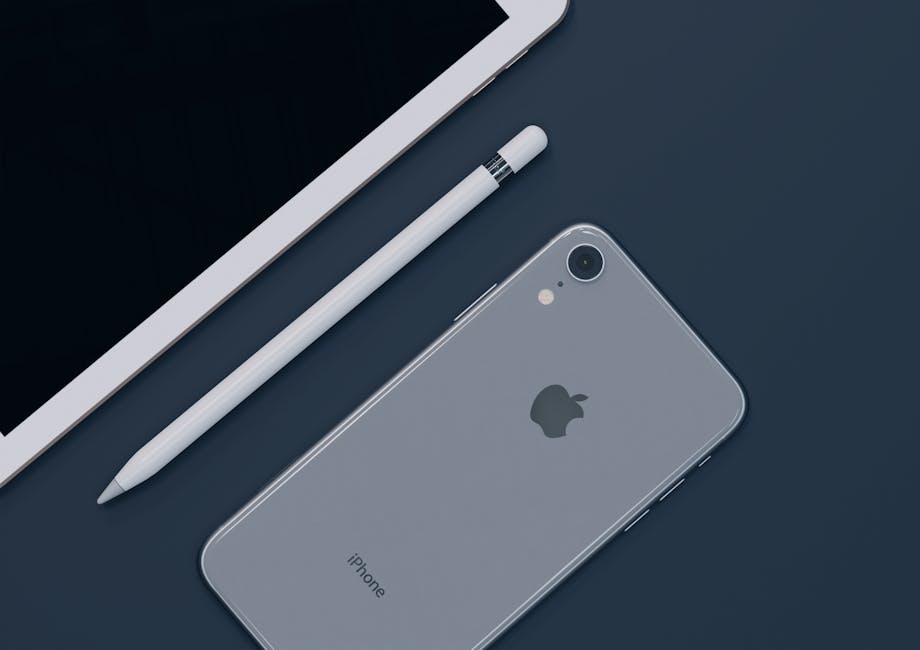
For those who crave more screen real estate or a more dynamic setup, Sidecar and Universal Control are game-changers. Sidecar turns your iPad into a second display for your Mac, either wirelessly or via a cable. This is fantastic for extending your desktop, using your iPad as a canvas with Apple Pencil, or keeping reference material open while you work on your main Mac screen.
Universal Control takes this concept to an unprecedented level. It lets you use a single mouse and keyboard across up to three Mac and iPad devices simultaneously, moving your cursor seamlessly between their screens. Imagine dragging a file from your Mac onto your iPad, or typing a message on your iPad using your Mac's keyboard – it’s incredibly intuitive and blurs the lines between your devices.
iCloud Sync: Everything in Its Right Place, Automatically
The backbone of much of this cross-device functionality is iCloud. iCloud effortlessly synchronizes your photos, videos, contacts, calendars, notes, reminders, documents, and app data across all your Apple devices. This ensures that the latest version of your information is always available, whether you're on your iPhone, iPad, or Mac.
Beyond personal data, iCloud Drive stores files securely in the cloud, making them accessible from any of your devices, or even a web browser. This means you can save a document on your Mac and open it moments later on your iPad to continue editing, without any manual transfers. It’s a powerful, silent workhorse keeping your digital life cohesive.
Quick Shares and Smart Photos: AirDrop and Continuity Camera
Need to share something fast or integrate your iPhone's camera into your Mac workflow? AirDrop and Continuity Camera have you covered. AirDrop provides a quick and secure way to share photos, videos, documents, and more with other nearby Apple devices, bypassing the need for cables or cloud uploads for small tasks. Just select, share, and it's there.
Continuity Camera lets you use your iPhone or iPad to scan documents or take a picture of something nearby, and have it immediately appear on your Mac. For instance, if you're working on a report on your Mac and need to include a physical document, simply select "Insert from iPhone or iPad" in many Mac apps, and your iOS device becomes an instant scanner.
Stay Connected: Calls, Messages, and Personal Hotspot Across Devices
The integration extends deeply into communication. With Continuity, you can make and receive phone calls from your Mac or iPad, even if your iPhone is in another room, as long as they are on the same Wi-Fi network and signed into the same Apple ID. Similarly, all your iMessages and SMS texts appear on all your devices.
Another incredibly useful feature is Personal Hotspot. If your Mac or iPad needs internet access and Wi-Fi isn't available, your iPhone can instantly provide it without you even having to touch the phone. Your devices simply recognize each other, offering your iPhone's cellular connection as an option directly from your Mac or iPad's Wi-Fi menu.
Maximizing Your Connected Apple Experience: How iOS Connects with Mac and iPad Effectively
To truly unlock the power of how iOS connects with Mac and iPad, a few settings and habits are key. Ensure all your devices are signed into the same Apple ID and have Wi-Fi and Bluetooth enabled. Keeping your software updated also guarantees you have access to the latest continuity features and performance improvements.
Here are some quick tips to enhance your cross-device workflow:
- Keep your devices relatively close for Handoff and AirDrop to work smoothly.
- Familiarize yourself with the Handoff icon (an app icon in the Dock on Mac, or in the App Switcher on iPhone/iPad).
- Explore app-specific continuity features, as many third-party apps also integrate with the Apple ecosystem.
- Utilize Universal Control for a truly unified multi-device desktop environment.
The Apple ecosystem isn't just a collection of gadgets; it's a meticulously designed environment where each device complements the others. Understanding these powerful connections allows you to work smarter, stay more organized, and enjoy a truly seamless digital life across your iPhone, iPad, and Mac. Embrace the flow, and let your devices work together for you.