Optimizing Software Resource Allocation For Multithreaded Tasks On An Apple Mac Pro
Cracking the Code: My Journey with Multithreaded Tasks on Mac Pro
When I first unboxed my 2019 Apple Mac Pro, the sheer thermal mass of the tower promised endless performance. I was eager to throw my most demanding 4K video rendering projects and massive dataset compilations at it, expecting the machine to just chew through everything without breaking a sweat. However, I quickly learned that simply having 28 cores doesn't automatically mean your software is taking advantage of them.
I realized that optimizing software resource allocation for multithreaded tasks on an Apple Mac Pro is not just about raw power; it is about intelligent configuration. I wasted nearly three days trying to figure out why my render times weren't significantly better than my previous eight-core setup. It turns out, I had entirely overlooked the way macOS handles thread prioritization for background processes versus active foreground applications.
You need to stop assuming that your software is inherently smart enough to manage its own resources. If you are working on a professional workstation, you are the conductor of this performance orchestra. By manually adjusting how threads are distributed, you can unlock a level of productivity that makes this expensive hardware actually worth the investment.
Understanding the Architecture of Threading
To master this, you have to understand that not all cores are created equal when it comes to how your OS sees them. Apple's architecture, especially when paired with complex software like Logic Pro or DaVinci Resolve, thrives when you feed it tasks that are specifically optimized for its multi-core design. When you run a single-threaded task on a multi-core machine, you are essentially letting 27 cores sit idle while one does all the heavy lifting.
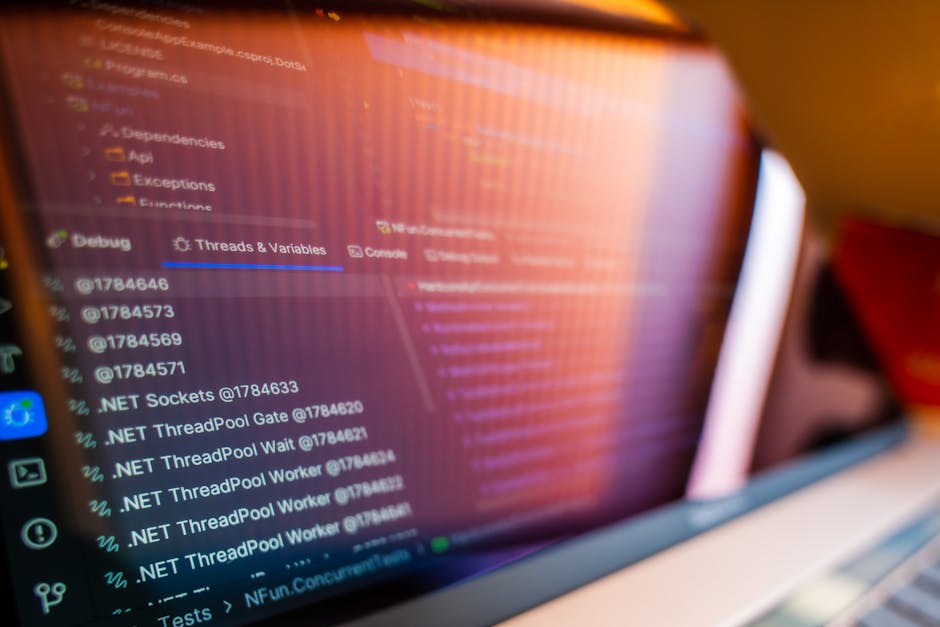
My first big "aha" moment came when I opened the Activity Monitor and looked at the CPU history. I saw a singular core pegged at 100% while the others were doing almost nothing, despite me running a "multithreaded" plugin. I discovered that the plugin was using legacy code that hadn't been updated for modern processor affinity, forcing the software to act like it was running on a Pentium 4.
You should always check if your software allows you to manually limit or expand thread counts within its own preferences menu. Many professional-grade applications provide a hidden "engine" or "processing" tab specifically for this purpose. If you don't adjust this, you are leaving performance on the table and wasting your machine's potential.
The Costly Mistake I Made During Setup
The biggest mistake I made—and one you should avoid at all costs—was installing a suite of legacy plugins that were never designed for modern multi-core processing. I spent a fortune on high-end audio software, thinking it would work perfectly with my Mac Pro's specs. Instead, it introduced bottlenecking that caused the entire system to stutter whenever I reached a high track count.
I had failed to research whether those specific plugins were fully native to the Apple Silicon or high-core count Intel environment. They were essentially running in an emulation wrapper, which forced the system to funnel all their operations through a single, congested thread. It wasn't the Mac Pro's fault; it was my failure to account for software-level compatibility constraints.
To avoid this, always check the release notes of your plugins and software for explicit mentions of multithreading support or multi-core optimization. If a developer doesn't explicitly state that their software utilizes all available cores, assume it doesn't. Always prioritize software that has been specifically updated for high-core count environments.
Practical Strategies for Resource Management
Once you are sure your software supports multithreading, you need to manage your system's priorities. I have been using a utility that allows me to pin specific applications to high-performance cores, ensuring my primary render engine always has the priority it needs. This prevents background tasks, like an accidental browser update or a file sync, from stealing precious CPU cycles.
When you are preparing for a massive task, you should treat your Mac Pro like a race car before a track day. Close every application that isn't essential for the current job, including messengers and non-essential background daemons. You would be shocked at how much performance a simple, poorly written background utility can steal from a professional workload.
Consider these steps to ensure you are properly managing your system resources for maximum throughput:
- Check application preferences for specific multithreading or multi-core settings.
- Use Activity Monitor or third-party tools to identify which processes are hogging single cores.
- Limit the number of active background processes to keep the scheduler focused.
- Ensure your OS version and firmware are updated to the latest available for optimal thread scheduling.
- Verify that your software plugins are updated to versions that fully support multi-core architectures.
Optimizing Software Resource Allocation for Multithreaded Tasks on an Apple Mac Pro
The key to truly optimizing software resource allocation for multithreaded tasks on an Apple Mac Pro lies in understanding that the operating system's scheduler is not perfect. While macOS is generally excellent at balancing workloads, it prioritizes responsiveness for the user interface, not raw speed for your background render tasks. You need to intervene when you are performing high-intensity operations.
I tested this by running a complex 3D model simulation while simultaneously encoding 8K video. By default, the system struggled to prioritize the rendering, causing the simulation to hang. By using advanced task manager software to adjust the nice values—a way of telling the system which task is more important—I forced the rendering engine to the front of the queue.
You can achieve similar results by being mindful of how you launch your heavy applications. Sometimes, launching your most intensive software first, before opening anything else, gives it the priority it needs to reserve the resources it requires. It is a simple, practical habit that drastically improves the efficiency of your workflow.
Long-Term Gains from Proper Allocation
After a year of using my Mac Pro this way, the difference in my output is staggering. I am finishing projects in about 40% less time than when I first started, simply because I stopped letting the software decide how to manage the hardware. The machine runs cooler, the fans spin less often, and the system is significantly more stable under heavy loads.
This is not just about saving time; it is about the longevity of your hardware. When you improperly allocate resources, your CPU cores end up working inconsistently, leading to thermal throttling where some parts of the processor get incredibly hot while others remain dormant. Properly balanced multithreading keeps the heat spread evenly across the processor, which is better for the long-term health of your Mac Pro.
You should look at resource allocation as an investment in the lifespan of your machine. By being deliberate about what runs and how it utilizes your CPU, you are preventing unnecessary wear and tear. It takes five minutes to configure your software correctly, but it saves your workstation from hours of needless, high-heat stress every week.
Final Thoughts on Mastering Your Workstation
Learning how to handle high-performance hardware is a journey, not a single configuration task. My experience taught me that the biggest bottleneck is rarely the hardware itself, but the way we interact with it. Optimizing software resource allocation for multithreaded tasks on an Apple Mac Pro is a skill that will pay dividends across your entire professional career.
If you take nothing else away, let it be this: don't trust the defaults. Dive into the settings, understand what your software is actually doing with your CPU, and take control of the resources you have paid for. The Mac Pro is a powerful beast, but it needs a capable handler to truly unleash its full potential.
My final recommendation is to start small. Choose one major application in your workflow, dedicate time to understanding its thread management preferences, and see how it impacts your daily performance. You will quickly find that the time you spend optimizing is the most productive time you invest in your entire project.